Nature Lion photo walkthrough
A useful grow journal starts with one photo
Use your own photos and dates. A short note today makes the next change easier to understand.
These are real photos from Nature Lion’s grow-kit gallery, paired with example notes written for this guide. They show different grows, not a documented time-lapse or a customer’s app journal.
1. Your first record
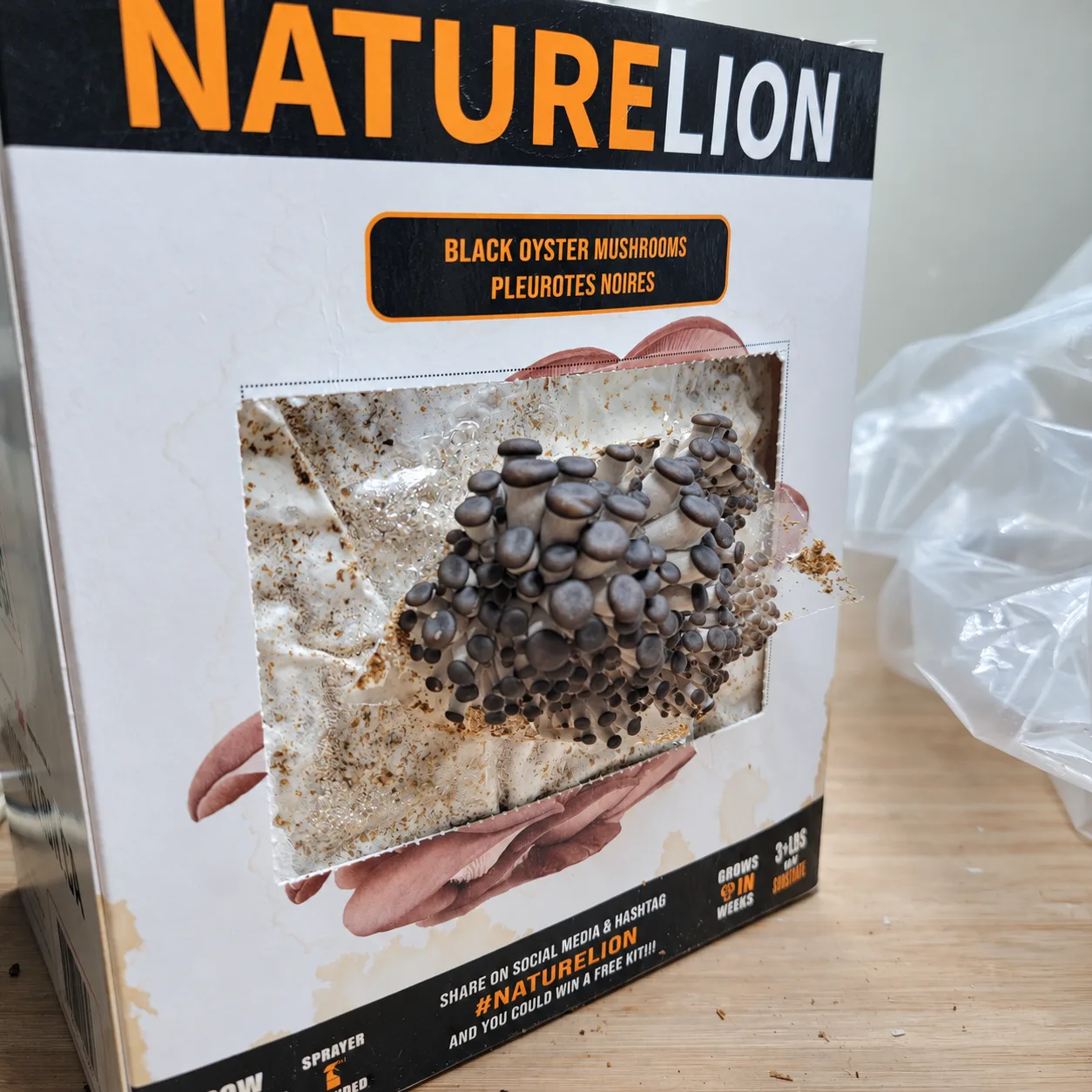
Example note
Small mushrooms have appeared at the opening. I took a photo of the whole kit.
Add the date you took the photo, the kit or species if known, and anything you want to remember about the setup.
2. Your next update
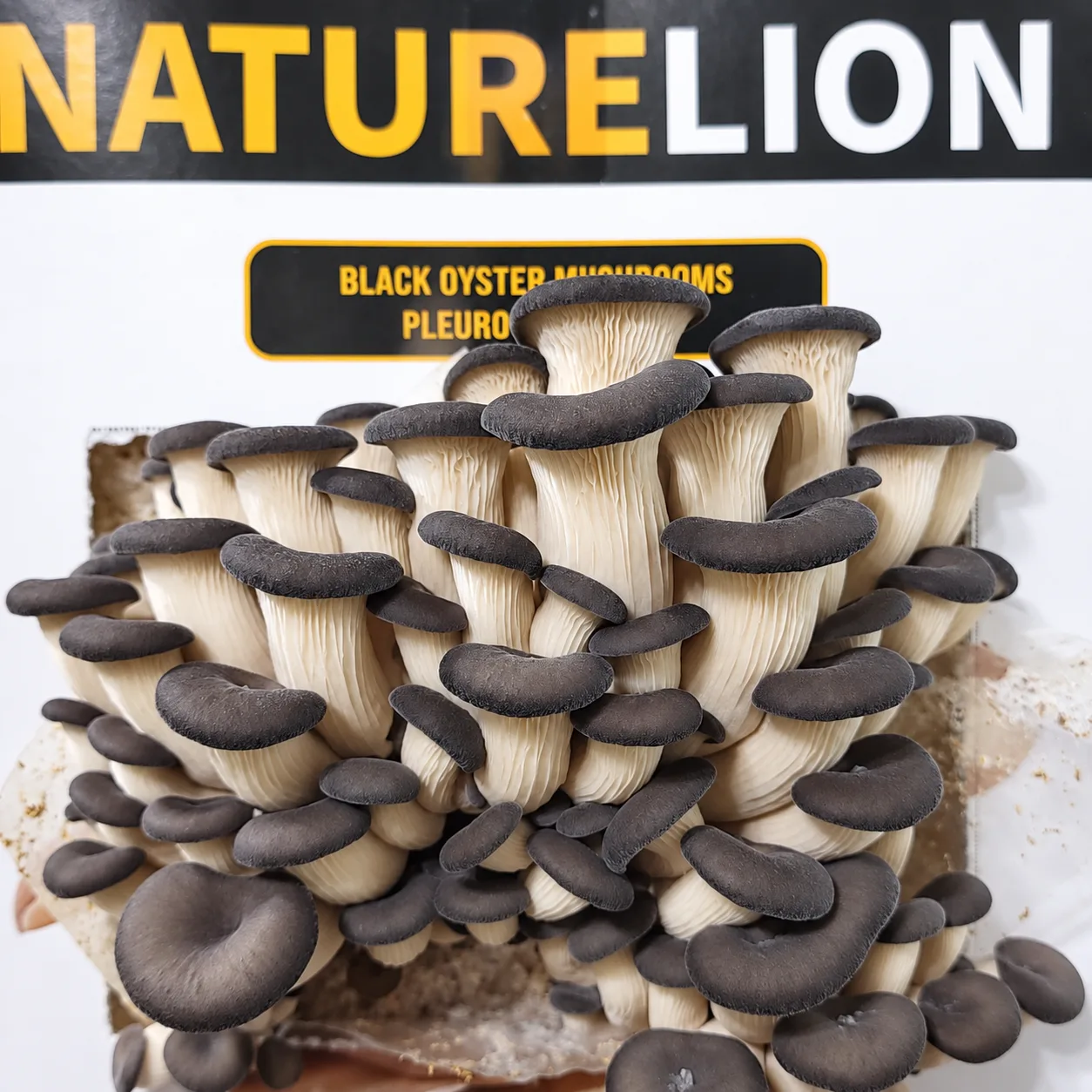
Example note
The caps are opening. Here is the cluster from the same angle as my last photo.
Open your saved grow and choose Add an update. Record any change you actually made to ventilation or misting, rather than guessing what caused the result.
3. Record the outcome
When you harvest, add the date and a photo. If you weigh it, record the actual fresh weight. You can also record a stalled grow or a problem; an honest outcome is useful.
No harvest weight or time-to-harvest is available for these reference photos, so this example does not supply one.
Upload before signing in. A free account can save public grows; private journals require Platinum. You choose visibility before saving.